Connecting to an Ubuntu Server using VNC. Note*:
Requirements
- An Ubuntu VM up and running in Azure.
- SSH acces to your VM. You can use Windows 10 Bash or PuTTy
Steps
-
If you haven’t done it from the portal, you can use the Azure CLI to deploy an Ubuntu Server 16.04. You will need to run this command from a terminal that has SSH installed and your SSH keys already generated because it will try to obtain
~/.ssh/id_rsa.pub. Also, the username you have in your terminal will give you access to the VM.az group create --name tests --location southcentralus az vm create -g tests -n bubulubuntu --image canonical:ubuntuserver:16.04-LTS:16.04.201612210Be patient, the creation of the VM could take some minutes. After it’s done you will obtain a public IP that you can use to SSH into your VM
ssh <<VM PUBLIC IP>>
-
Inside of the VM you should be seeing this output.
  Welcome to Ubuntu 16.04.1 LTS (GNU/Linux 4.4.0-57-generic x86_64)

  * Documentation:  https://help.ubuntu.com
  * Management:     https://landscape.canonical.com
  * Support:        https://ubuntu.com/advantage

  Get cloud support with Ubuntu Advantage Cloud Guest:
      http://www.ubuntu.com/business/services/cloud

  0 packages can be updated.
  0 updates are security updates.


  Last login: Wed Dec 21 21:49:06 2016 from 131.107.160.121
  To run a command as administrator (user "root"), use "sudo <command>".
  See "man sudo_root" for details.


  bruno@bubulubuntu:~$
Lets start by installing TaskSel, which will manage the installation of the Desktop Environment.
  sudo apt-get update
  sudo apt-get upgrade
  sudo apt install tasksel
-
Run
taskseland installUbuntu Desktopsudo tasksel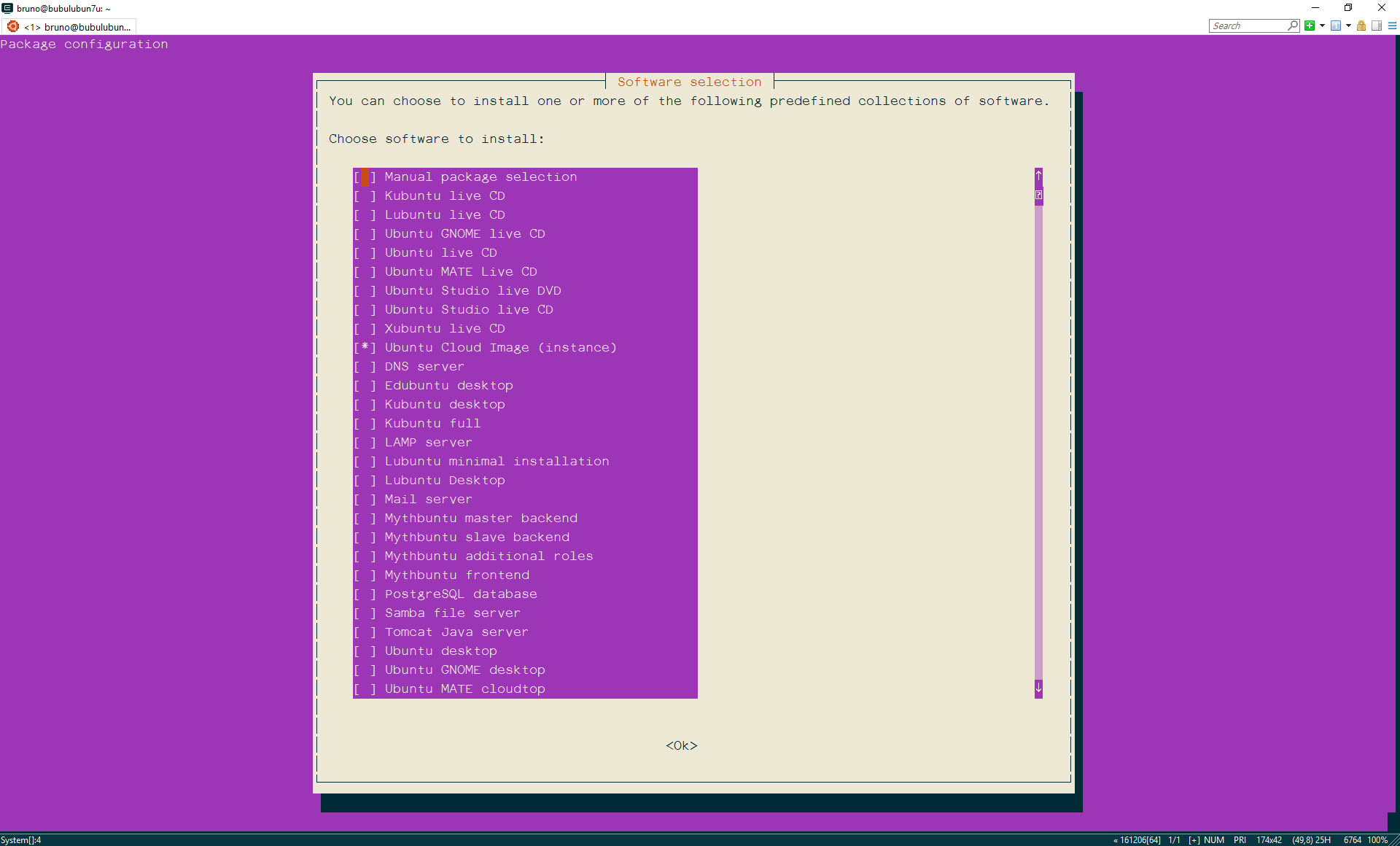
Here you should put the cursor on the package “Ubuntu Desktop” and press
spacein your keyboard to mark it for installation, then presstabto go to<Ok>and finallyenterto start the installation.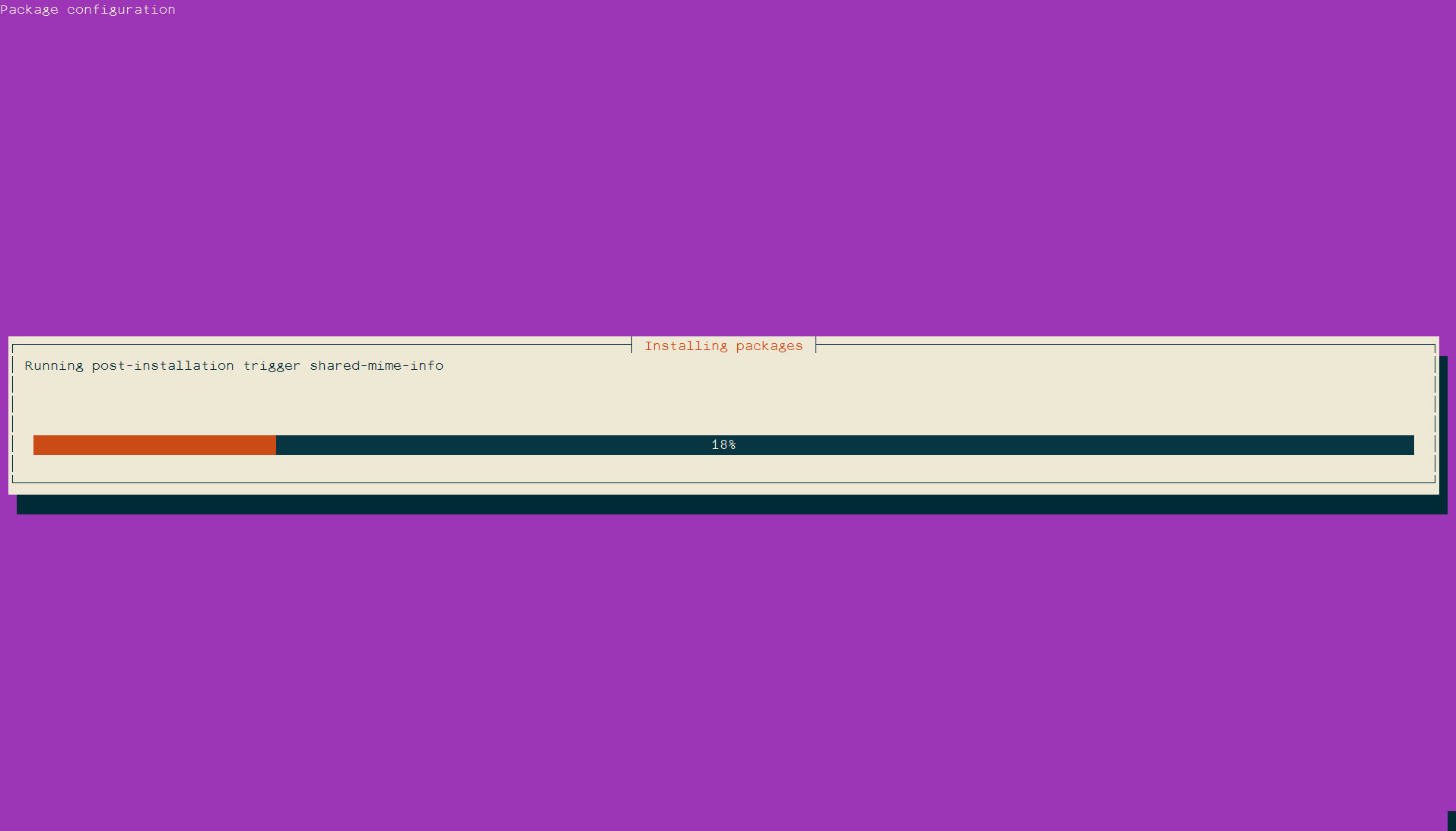
-
While this is installing in your server install a VNC client like VNC Viewer from RealVNC
-
Back to your Ubuntu 16.04 server in the cloud, when the installation is done, install the Vnc Server you have to reboot the VM.
 sudo apt-get install vnc4server
 sudo shutdown -r now
In your terminal you would see something like this:
 Connection to 13.66.48.250 closed by remote host.
 Connection to 13.66.48.250 closed.
Give it a couple of minutes before trying to going back in again.
-
SSH back into your Linux box and configure
vncserver, don’t forget the password you choose (only 8 chars)vncserver -
Edit
xstartup. First lets stop the servervncserver -kill :1And edit
~/.vnc/xstartupso it looks like this:#!/bin/sh # Uncomment the following two lines for normal desktop: unset SESSION_MANAGER exec sh /etc/X11/xinit/xinitrc [ -x /etc/vnc/xstartup ] && exec /etc/vnc/xstartup [ -r $HOME/.Xresources ] && xrdb $HOME/.Xresources xsetroot -solid grey vncconfig -iconic & x-terminal-emulator -geometry 80x24+10+10 -ls -title "$VNCDESKTOP Desktop" & x-window-manager &And now restart the vncserver
vncserver -
Make a tunnel
ssh -L 5901:127.0.0.1:5901 -N -f -l -
Open VNC viewer and connect to
localhost:5901
Resources
- https://www.digitalocean.com/community/tutorials/how-to-install-and-configure-vnc-on-ubuntu-16-04
- http://askubuntu.com/questions/592537/can-i-access-ubuntu-from-windows-remotely
- http://c-nergy.be/blog/?p=9962
- http://c-nergy.be/blog/?p=5956
- http://stackoverflow.com/questions/25657596/how-to-set-up-gui-on-amazon-ec2-ubuntu-server