First, we will deploy an Azure Container Service (ACS) running Kubernetes with ACS Engine. Then we will install DEIS on top of this cluster and create an empty app.
Requirements
- Windows 10 bash or other unix based terminal.
- SSH keys and your console ready to connect to a server
- Go programming language
- jq to parse the json responses in the console
- ACS Engine
- Kubectl
- DEIS
- HELM
Steps
-
The easiest way to do this is by getting the new Azure CLI installed. You can follow the instructions here, and basically if you are running Bash on Windows 10 (Build 14362+) with Python 2.7.6, you should do the following:
 sudo apt-get update
 sudo apt-get install -y libssl-dev libffi-dev
 sudo apt-get install -y python-dev
 curl -L https://aka.ms/InstallAzureCli | sudo bash
Or if you are running Mac OS X:
curl -L https://aka.ms/InstallAzureCli | sudo bash -
Login to your Azure account:
az loginThis will provide us the information that we need to use in the following commands. You will obtain something like this:
{ "cloudName": "AzureCloud", "id": "98xxx7d-bxx8-sxx2-txx4-a2dxxxxxxxp0", "isDefault": true, "name": "My awesome subscription", "state": "Enabled", "tenantId": "xxxxxxx-xxx-xxx-xxx-fxxxxx4", "user": { "name": "super@cool.mail.com", "type": "user" } } -
Use the subscription id
"id": "98xxx7d-bxx8-sxx2-txx4-a2dxxxxxxxp0"from the previous step and replace it in the following commands to set it as a shell variable that can be used in the creation of the RBAC role. We will collect this info in theSP_JSONenvironment variable to use it later.export SUBSCRIPTION_ID=98xxx7d-bxx8-sxx2-txx4-a2dxxxxxxxp0 az account set --subscription="${SUBSCRIPTION_ID}" SP_JSON=`az ad sp create-for-rbac --role="Contributor" --scopes="/subscriptions/${SUBSCRIPTION_ID}"`This has set up the json response in the environment variable
SP_JSONwe can runecho $SP_JSONand it will output something like this:{ "appId": "47xxxxx-xxxx-xxxx-xxxx-xxxxxdac2", "name": "http://azure-cli-2016-12-xxxxx-47", "password": "faxxxx-xxxx-xxxx-xxxx-xxxx5bc222", "tenant": "72fxxxx-xxxx-xxxx-xxxx-xxxxx11db47" }For convenience we can use
jqto set up more precise environment variables from the json we just collected, these variables will be used in the following steps instead of actually having to remember the actual value:export SP_NAME=`echo $SP_JSON | jq -r '.name'` export SP_PASS=`echo $SP_JSON | jq -r '.password'` export SP_TENANT=`echo $SP_JSON | jq -r '.tenant'`You can verify that your Service Principal works by logging in with the following command.
az login --service-principal -u "${SP_NAME}" -p "${SP_PASS}" --tenant "${SP_TENANT}"You should obtain the same info you already had when you first logged in:
{ "cloudName": "AzureCloud", "id": "98xxx7d-bxx8-sxx2-txx4-a2dxxxxxxxp0", "isDefault": true, "name": "My awesome subscription", "state": "Enabled", "tenantId": "xxxxxxx-xxx-xxx-xxx-fxxxxx4", "user": { "name": "http://azure-cli-2016-12-xxxxx-47", "type": "servicePrincipal" } } -
Lets think of a name and put it in one more env variable called
RG_NAMEso we can use it later. For this tutorial I am choosingsouthcentralusas my location, please consider that for some Azure subscriptions not all the locations are available.export RG_NAME=spreecommerce az resource group create --name "${RG_NAME}" --location southcentralusYou should get the following output:
{ "id": "/subscriptions/6xxxxxxx-xxxx-xxxx-xxx-4xxxxxxxx/resourceGroups/<"RG_NAME">", "location": "southcentralus", "managedBy": null, "name": <"RG_NAME">, "properties": { "provisioningState": "Succeeded" }, "tags": null } -
Since Go and ACS Engine is already installed. You can also use the following command to paste all the information automatically into the deploying json file that
acs-enginewill be using. Just make sure you choose a unique custom name for yourRG_DNS_NAME. Also, this command requires that you have followed this tutorial instructions and you actually have$SP_NAME,$SP_PASSas environment variables. Also, your ssh key will be the one in~/.ssh/id_rsa.pubwithout passphrase and your terminal username will used to access the cluster. If you did not follow the tutorial step by step go to the next step.cd $GOPATH/src/github.com/Azure/acs-engine export RG_DNS_NAME=ecocluster1cat <<EOT >> my_acs_deploy.json { "apiVersion": "vlabs", "properties": { "orchestratorProfile": { "orchestratorType": "Kubernetes" }, "masterProfile": { "count": 1, "dnsPrefix": "`echo $RG_DNS_NAME`", "vmSize": "Standard_D2_v2" }, "agentPoolProfiles": [ { "name": "agentpool1", "count": 3, "vmSize": "Standard_D2_v2", "availabilityProfile": "AvailabilitySet" } ], "linuxProfile": { "adminUsername": "`echo $USERNAME`", "ssh": { "publicKeys": [ { "keyData": "`cat $HOME/.ssh/id_rsa.pub`" } ] } }, "servicePrincipalProfile": { "servicePrincipalClientID": "`echo $SP_NAME`", "servicePrincipalClientSecret": "`echo $SP_PASS`" } } } EOTAfter its generated make sure to give it and verify that the file is complete and all the needed fields are not empty with
cat my_acs_deploy.json. -
(OPTIONAL) Follow this step ONLY if you weren’t able to run the previous step. We will proceed to generate a template from the
example/kubernetes.jsonfile in theacs-enginefolder that you have previously installed.cd $GOPATH/src/github.com/Azure/acs-engine cp examples/kubernetes.json my_acs_deploy.jsonNow lets open the file:
 {
     "apiVersion": "vlabs",
     "properties": {
         "orchestratorProfile": {
         "orchestratorType": "Kubernetes"
         },
         "masterProfile": {
         "count": 1,
         "dnsPrefix": "<<< YOUR CLUSTER UNIQUE NAME >>>",
         "vmSize": "Standard_D2_v2"
         },
         "agentPoolProfiles": [
             {
                 "name": "agentpool1",
                 "count": 3,
                 "vmSize": "Standard_D2_v2",
                 "availabilityProfile": "AvailabilitySet"
             }
         ],
         "linuxProfile": {
         "adminUsername": "<<< YOUR ACS USERNAME >>>",
         "ssh": {
             "publicKeys": [
                 {
                     "keyData":"<<< YOUR SSH PUBLIC KEY >>>"
                 }
             ]
         }
         },
         "servicePrincipalProfile": {
             "servicePrincipalClientID": "<<< YOUR SP NAME >>>",
             "servicePrincipalClientSecret": "<<< YOUR SP PASSWORD >>>"
         }
     }
 }
Replace the
<<< YOUR CLUSTER UNIQUE NAME >>>,<<< YOUR SSH PUBLIC KEY >>><<< YOUR SP NAME >>>and<<< YOUR SP PASSWORD >>>,<<< YOUR ACS USERNAME >>>with your information. -
Generate the json files with the ACS engine using the generated json template into the folder
myACSCluster./acs-engine -artifacts myACSCluster my_acs_deploy.json -
Deploy the cluster with your new generated ARM templates
az resource group deployment create --resource-group="${RG_NAME}" --template-file="myACSCluster/azuredeploy.json" --name="${RG_DNS_NAME}" --parameters @myACSCluster/azuredeploy.parameters.jsonNote: It will take a couple of minutes, so be patient and do not kill the command.
The output you will see will be something like this with the word Succeeded on the provisioning state:
{ { .... "provisioningState": "Succeeded", "template": null, "templateLink": null, "timestamp": "2016-12-16T23:27:28.621503+00:00" }, "resourceGroup": "spreecommerce" } -
After creating the cluster we need to use
kubectlto connect with our cluster, make sure you have that installed before following the next part. To get control of the cluster just make sure to have it the config file in this location~/.kube/config.mkdir .kube #make sure you have this folder scp ${USERNAME}@${RG_DNS_NAME}.southcentralus.cloudapp.azure.com:.kube/config ~/.kube/configNote: If you have more kubernetes clusters you can create a custom name for each file and then use the environment variable
$KUBECONFIGto indicate the one you want to use. -
Check the cluster info:
kubectl cluster-infoKubernetes master is running at https://${RG_DNS_NAME}.southcentralus.cloudapp.azure.com Heapster is running at https://${RG_DNS_NAME}.southcentralus.cloudapp.azure.com/api/v1/proxy/namespaces/kube-system/services/heapster KubeDNS is running at https://${RG_DNS_NAME}.southcentralus.cloudapp.azure.com/api/v1/proxy/namespaces/kube-system/services/kube-dns kubernetes-dashboard is running at https://${RG_DNS_NAME}.southcentralus.cloudapp.azure.com/api/v1/proxy/namespaces/kube-system/services/kubernetes-dashboard -
Install
workflow, run each command one by one, you will need to havehelmanddeisinstalled:helm init helm repo add deis https://charts.deis.com/workflow helm install deis/workflow --namespace deis -
See how yor pods are being created in another terminal:
kubectl --namespace=deis get pods -wYour output should look like this:
 NAME                                     READY     STATUS    RESTARTS   AGE
 deis-builder-415246326-pngpz             0/1       Running   0          2m
 deis-controller-1590631305-hykp4         0/1       Running   3          2m
 deis-database-510315365-mrbk5            1/1       Running   0          2m
 deis-logger-9212198-tp03l                1/1       Running   3          2m
 deis-logger-fluentd-162yx                1/1       Running   0          1m
 deis-logger-fluentd-i8hrp                1/1       Running   0          1m
 deis-logger-fluentd-obrfr                1/1       Running   0          1m
 deis-logger-fluentd-ys3oo                1/1       Running   0          1m
 deis-logger-redis-663064164-6em9a        1/1       Running   0          2m
 deis-minio-3160338312-ugsi3              1/1       Running   0          2m
 deis-monitor-grafana-432364990-dyqzl     1/1       Running   0          2m
 deis-monitor-influxdb-2729526471-iypdy   1/1       Running   0          1m
 deis-monitor-telegraf-47d6l              1/1       Running   0          1m
 deis-monitor-telegraf-ehy32              1/1       Running   0          1m
 deis-monitor-telegraf-ljts0              1/1       Running   0          1m
 deis-monitor-telegraf-xx1cz              1/1       Running   0          1m
 deis-nsqd-3264449345-i2ojb               1/1       Running   0          1m
 deis-registry-2182132043-7vmjd           1/1       Running   1          1m
 deis-registry-proxy-hraa8                1/1       Running   0          1m
 deis-registry-proxy-ow6vu                1/1       Running   0          1m
 deis-registry-proxy-vyrfx                1/1       Running   0          1m
 deis-registry-proxy-w6yfs                1/1       Running   0          1m
 deis-router-2457652422-fu7du             1/1       Running   0          1m
 deis-workflow-manager-2210821749-t884r   1/1       Running   0          1m
 NAME                               READY     STATUS    RESTARTS   AGE
 deis-controller-1590631305-hykp4   1/1       Running   3          2m
 deis-builder-415246326-pngpz   1/1       Running   0         2m
 deis-monitor-telegraf-47d6l   0/1       Error     0         2m
 deis-monitor-telegraf-47d6l   1/1       Running   1         2m
 deis-monitor-telegraf-ehy32   0/1       Error     0         2m
 deis-monitor-telegraf-ehy32   1/1       Running   1         2m
To exit, press
Ctr + C -
Get the ip from the router
kubectl --namespace=deis describe svc deis-router | grep "LoadBalancer Ingress"You should look for
LoadBalancer IngeressIP address, if nothing comes out you should wait a little longer. -
Using that ip use the controller url to register a new user in the cluster
deis register http://deis.<<LOADBALANCER INGRESS IP>>.nip.ioGive it an username, password and email.
-
Create an empty application:
deis create --no-remoteAnd confirm that everything is correct by getting a cool random app name like
sanest-radiator`Creating Application... done, created sanest-radiator If you want to add a git remote for this app later, use `deis git:remote -a sanest-radiator`
Adding nodes on the fly
Thanks to acs-engine we are able to accomplish this in a simple but (a little) obscure way.
In step 7, you created the artifacts by running ./acs-engine -artifacts myACSCluster my_acs_deploy.json, so you will have the following file: myACSCluster/apimodel.json. Please, go ahead and review the contents of this file, you will find something like this:
{
  "apiVersion": "vlabs",
  "plan": {},
  "properties": {
    "provisioningState": "",
    "orchestratorProfile": {
      "orchestratorType": "Kubernetes"
    },
    "masterProfile": {
      "count": 1,
      "dnsPrefix": "deisy",
      "vmSize": "Standard_D2_v2",
      "firstConsecutiveStaticIP": "10.XXX.XXX.X"
    },
    "agentPoolProfiles": [
      {
        "name": "agentpool1",
        "count": 3,
        "vmSize": "Standard_D2_v2",
        "availabilityProfile": "AvailabilitySet",
        "storageProfile": "StorageAccount"
      }
    ],
    "linuxProfile": {
      "adminUsername": "bruno",
      "ssh": {
            "publicKeys": [ ...]
            }
        }
    }
}
Here you can see that there is a property called agentPoolProfiles that contains the amount of agents the cluster can have. Let’s just update it with vi (or nano) that value from three to five and save it.
    "agentPoolProfiles": [
      {
        "name": "agentpool1",
        "count": 5,
        "vmSize": "Standard_D2_v2",
        "availabilityProfile": "AvailabilitySet",
        "storageProfile": "StorageAccount"
      }
    ],
To add the nodes we must acs-engine to re-generate the json files for the cluster using the apimodel.json file. This command will replace the following files: azuredeploy.parameters.json, azuredeploy.json and apimodel.json.
./acs-engine -artifacts myACSCluster myACSCluster/apimodel.json
Finally re-run the deployment of the cluster with the following command:
az resource group deployment create --resource-group="${RG_NAME}" --template-file="myACSCluster/azuredeploy.json" --name="${RG_DNS_NAME}" --parameters @myACSCluster/azuredeploy.parameters.json
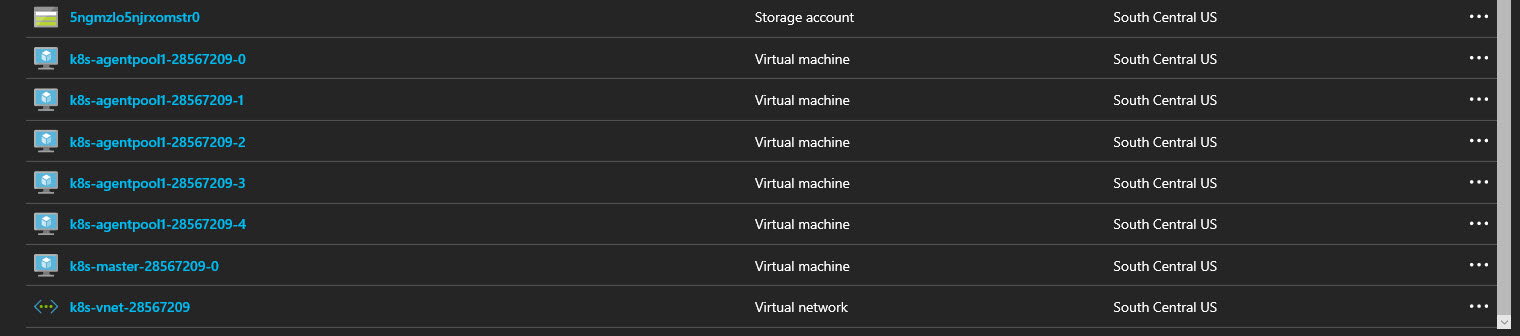
And you can confirm that you have three new agents up and running in the portal.